Phone Configurations
Phone Configurations are used to automatically validate and format phone numbers as required.
Validation
- Ensure phone numbers are valid for a given country
- Ensure phone numbers are of a given type (e.g. a Fixed Line, Mobile Number, Toll Free number, etc)
- Present user with a standard or custom error message if validation fails
- Ability to allow specific users (e.g. Integration Users) to bypass validation
Formatting
- Ensure valid phone numbers are formatted as required, ensuring consistency and better usability.
- Ensure valid phone numbers are stored in a format required for tools like SMS, or Marketing.
Setting up a configuration
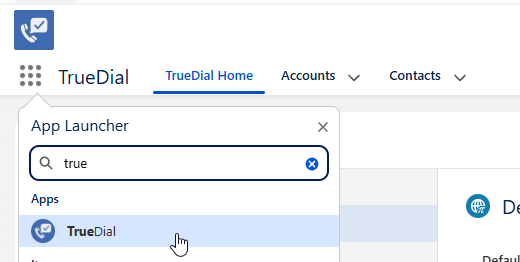
Setting up a configuration is straightforward and easy. To begin, navigate to the TrueDial App
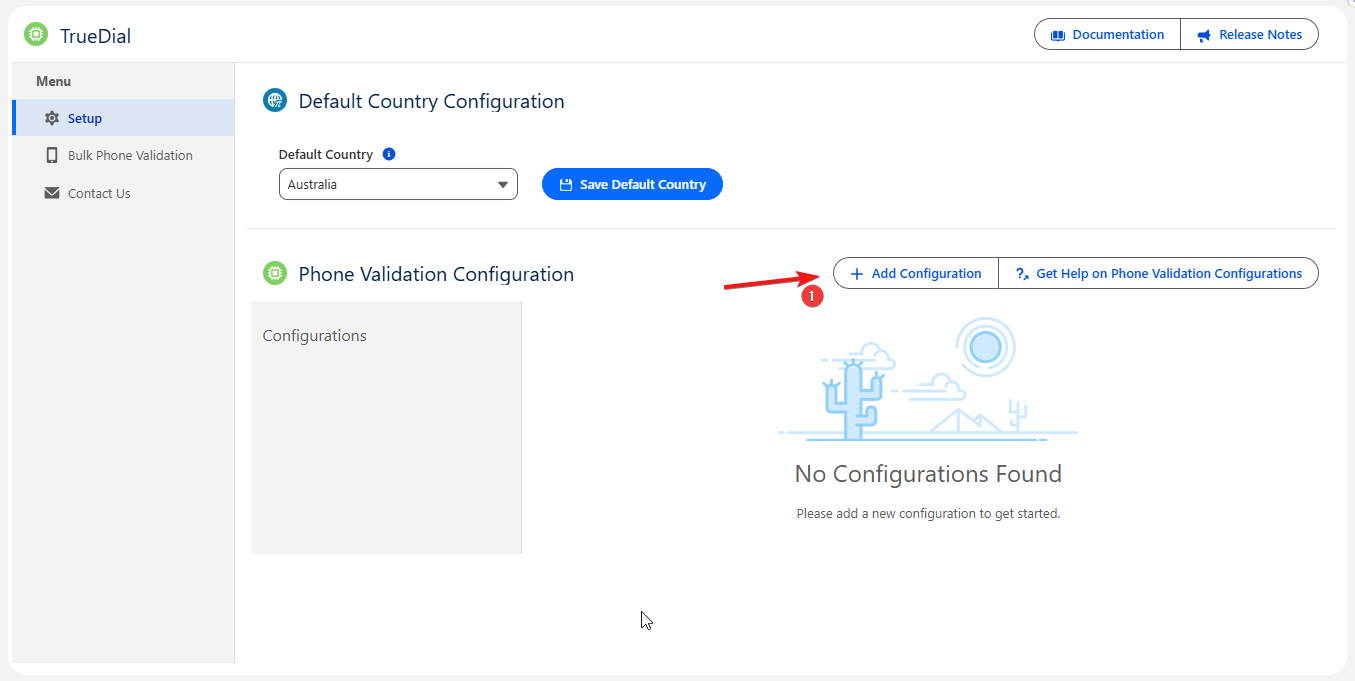
Under Setup, find the Phone Validation Configuration section, and click Add Configuration
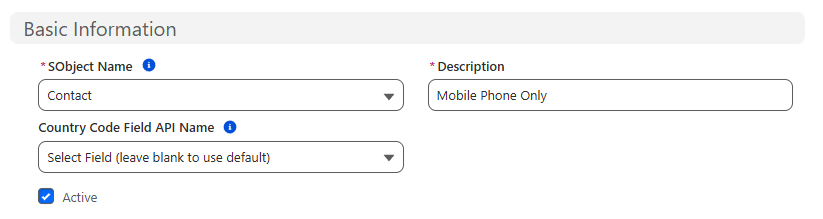
Now, lets setup a configuration for the Contact object, specifically, we want ensure the Mobile Phone field on Contact is a valid mobile number and formatted in E164 format for telephony purposes.
Begin by specifying the Salesforce® Object, and give the configuration a Description. We are going to leave Country Code Field API Name blank as we only deal with Australian Contacts in this example.
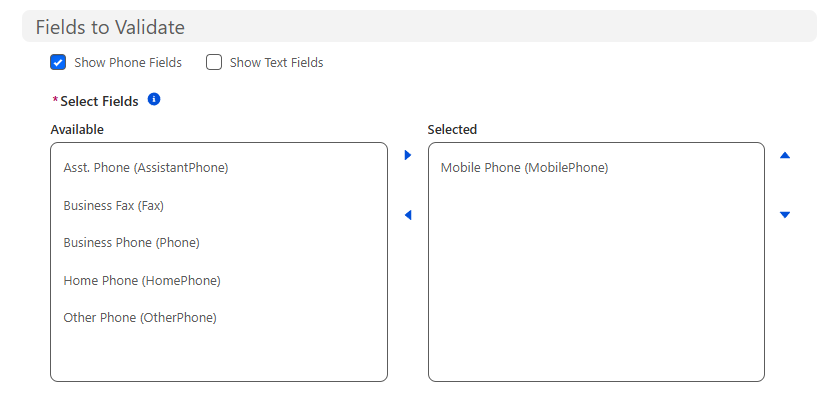
We will now select all fields that this configuration should apply to. We'll select Mobile Phone and move it to the Selected section.
By default, fields of type Phone will be visible. You can enable the Show Text Fields if the field you are validating happens to be a text field. We recommend all phone numbers are stored in the Phone field type.
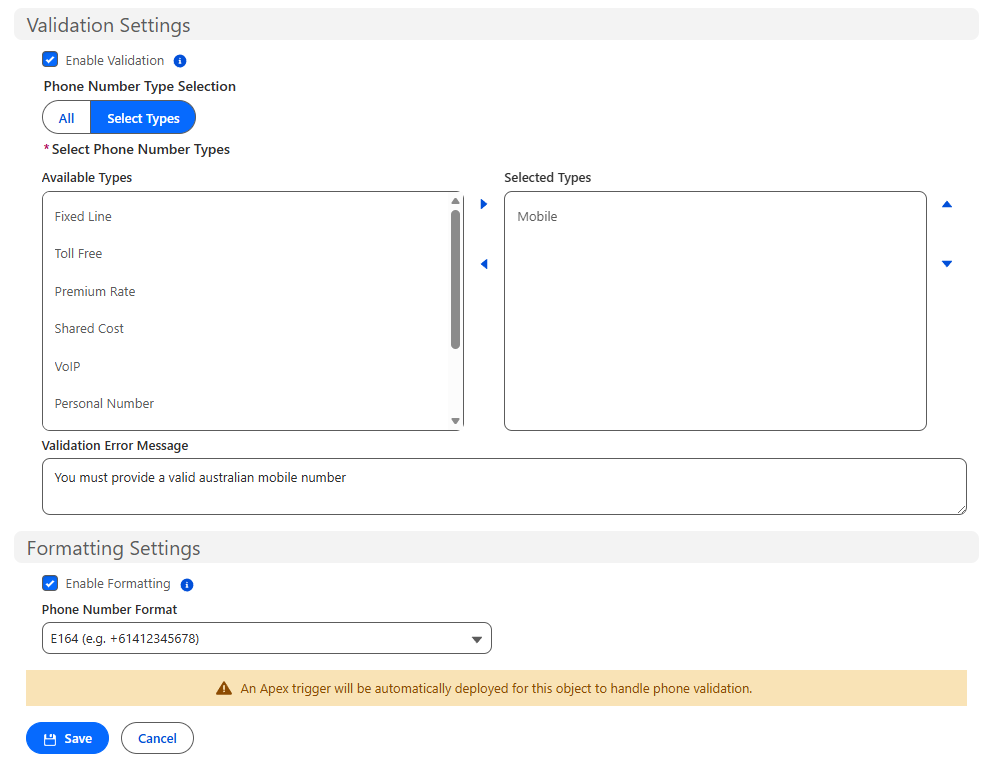
Finally, we will enable validation, then clicking Select Types to specify which phone types are valid. We will select the Mobile Validation Phone Number Type. This means all selected phone number fields, if populated, must be a valid number of type Mobile for the defined country. (In this case, Australia).
I've chosen to specify a custom error message, but you can leave this blank for a generic error message.
We also enable formatting, selecting the E164 format. Then, click Save.
If Validation or Formatting is enabled, an Apex Trigger is deployed to the selected Salesforce® object. This only happens once per object and is removed if you delete the configuration.
You'll now see the configuration available as shown below. Thats it!
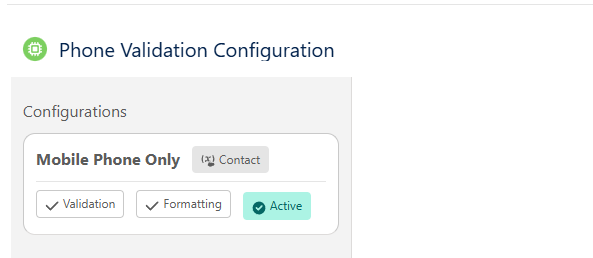
Lets test it out!
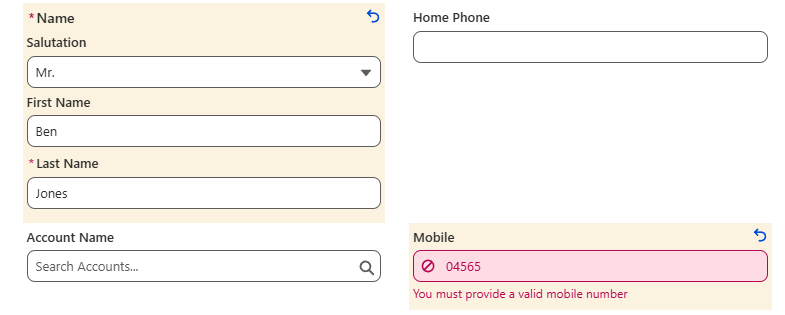
Navigate to Contacts, and create or update a contact. If we put an invalid number, or a number that is not a mobile number, we get an error when saving.
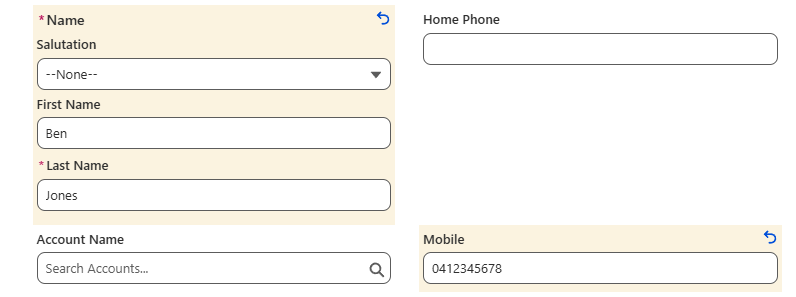
If we provide a valid australian mobile number, the record saves and is formatting in E164 format as expected.

Of course, this is just a simple example. You can create one or more configurations for a given Salesforce® Object, though a field can only be used in a single configuration.