Bulk Phone Validation
Bulk Phone Validation allows users to quickly and easily validate and format your existing records based on configurations you have set.
First, navigate to the TrueDial app, then select Bulk Phone Validation.

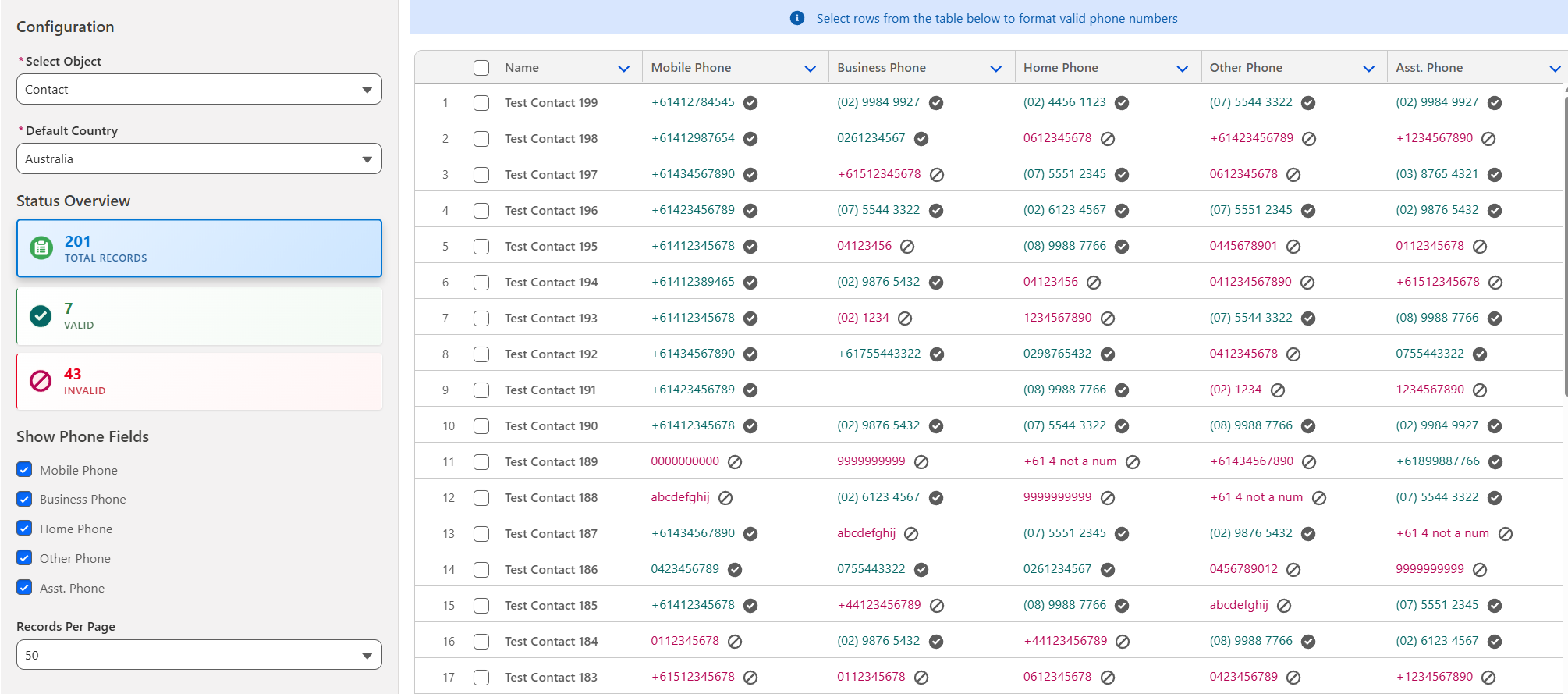
| Option | Description |
|---|---|
| Select Object | The Salesforce® Object you want to format. Only objects defined in configurations are presented. |
| Status Overview | The breakdown of records based on number validity. You can click on Valid or Invalid to filter records with only valid/invalid entries respectively. |
| Show Phone Fields | Allows the user to show/hide various fields as necessary |
| Records per Page | Changes the number of records shown in the main window at any point in time. Use the Next or Previous options at the bottom to scroll through the pages. |
Fixing Invalid Numbers
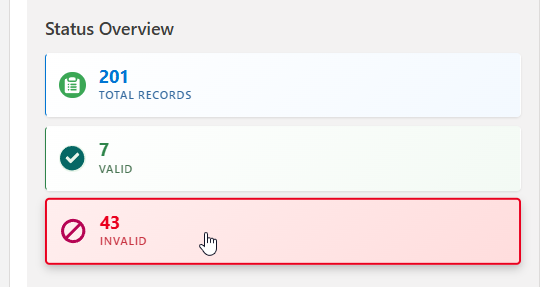
To begin, it would be easiest to filter on all invalid numbers. To do this, select the Invalid filter on the left.
To update a phone number, hover over the number, and select the ✏️ icon.

Now, in the previous section, we enabled Home Phone to only allow landline numbers. Lets try providing an invalid number.

Click outside of the cell, or click 'Enter'. The updated number will show with a yellow background, meaning its a draft number and not yet saved. Once you are ready, click Save to save any draft numbers.

If an error occurs, you can see the individual errors for each record field by clicking the error icon.

Lets provide a valid landline number and save the record. Now, you'll get a success message, and the icon will move to a ☑️ tick.

Bulk Formatting
If existing phone numbers are valid, but are not formatted correctly, you can quickly format one, multiple, or all records. To do this, select the checkbox to the left of the record.

Then, click Format Valid Numbers, then Save.
